 Jompter Docs
Permissions
The four macOS permissions Jompter needs, what each one unlocks, and how to fix a stuck one.
macOS will not let an app type on your behalf, listen to your microphone or read your screen without your explicit consent. Jompter asks for four separate permissions. Each one gates specific features, and the app degrades quietly rather than loudly when one is missing — so if something "does nothing", check here first.
Onboarding will not let you continue until all four are granted. Afterwards they live at the top of Settings → General, under Permissions, with a count of how many are granted. Each missing one has an Open settings button that asks macOS for the permission and then opens the right System Settings pane. A badge reads Granted only when macOS confirms it — clicking the button is not enough — and the badges recheck when you switch back to Jompter.
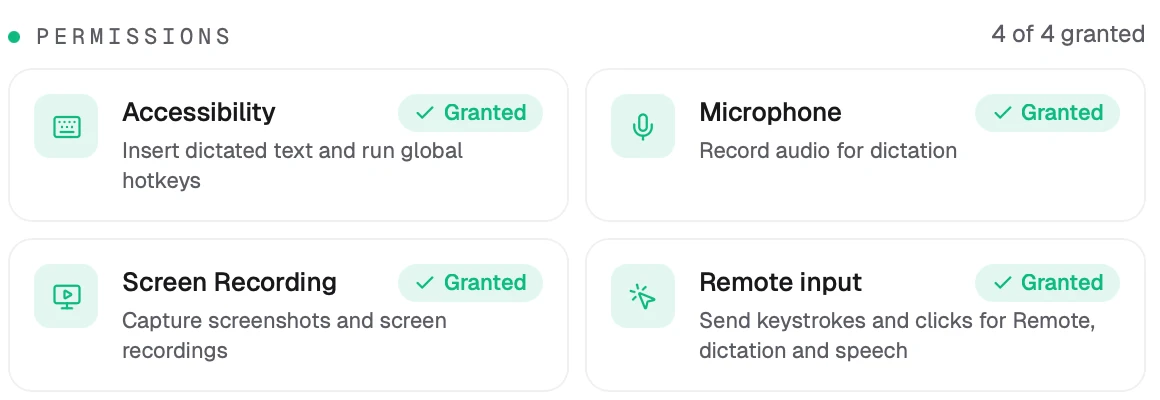
Which macOS permissions does Jompter need?
Accessibility
Needed for: inserting dictated text into other apps, global hotkeys — including the Right ⌘ and Right ⌥ dictation keys — and reading your current text selection for Speak.
Without it: hotkeys do nothing and dictated text never appears in the app you are typing into. As soon as you grant it, holding Right ⌘ starts working — no restart needed.
Microphone
Needed for: recording audio for dictation.
Without it: the level meter in onboarding stays flat and recordings are silent.
Screen Recording
Needed for: screenshots, screen recordings and Remote.
Without it: ⌘⇧S and ⌘⇧F produce nothing, and a phone connected over Remote sees a black screen.
Remote input
Needed for: actually sending keystrokes and clicks — for Remote, for dictation and for Speak.
This is a separate permission from Accessibility, even though its toggle sits in the same System Settings pane. This is the single most common source of "I granted everything and it still doesn't type." Grant Accessibility and Remote input, and check that both read Granted in Jompter.
How do I grant Jompter's permissions on Mac?
- Open Settings → General → Permissions in Jompter.
- Click Open settings next to a permission that is not granted.
- macOS shows its own prompt, then opens System Settings → Privacy & Security.
- Turn the Jompter toggle on.
- Switch back to Jompter. If the badge still does not read Granted, click the Restart button that appears — macOS applies some grants only when the app relaunches.
How do I fix a stuck Screen Recording or Accessibility permission?
macOS caches these decisions per app binary, and an update can occasionally leave a stale entry behind. In System Settings → Privacy & Security, find the relevant list, remove Jompter with the − button, then grant it again from inside Jompter. If it is still stuck, quit Jompter completely (menu bar → Quit Jompter) and relaunch — some permissions only take effect on a fresh launch.
Does Remote need a system audio permission?
If you want your Mac's system audio to reach your phone, macOS also asks for System Audio capture. It is optional, not part of onboarding, and Remote audio is off by default. See Hosting Remote.