 Jompter Docs
Hosting Remote on your Mac
Set up your Mac so the Jompter iPhone app can see and control it: turning Remote on, permissions, pairing codes, and the peer-to-peer video.
Remote streams this Mac's screen to your phone and sends your taps back as real clicks and keystrokes. The video goes peer-to-peer between the two devices; our servers only introduce them to each other and never see the picture.
The phone side is documented under Jompter Remote. This page is the Mac side.
Remote is free for one 10-minute session a day. A lifetime licence, a cloud subscription or a beta grant removes the limit. Relay bandwidth is billed by the gigabyte, which is why the free session is capped rather than open.
Turning it on
Settings → General → Connections → Remote, or the master switch on the Remote page. Off by default.
Once on, this Mac registers itself and stays available for your phone to find.
Connecting a phone
Two ways.
Scan a QR code. The Scan to connect to this Mac card shows a code. Point your phone's camera at it — the iPhone Camera app opens Jompter Remote straight into the session. Each code expires after 2 minutes, is single-use, and a new one supersedes the last.
Type a 6-digit code. The phone asks for a session; a consent window appears on this Mac — "A device is connecting" — showing a code to type on the phone, with Approve and Deny. There is also a Connect now button here that pulls the phone straight through.
The consent window offers to trust the device, which skips the code on later connections. The wording is deliberate: "Skips the code check — only if this is your own device, right now."
The Remote page
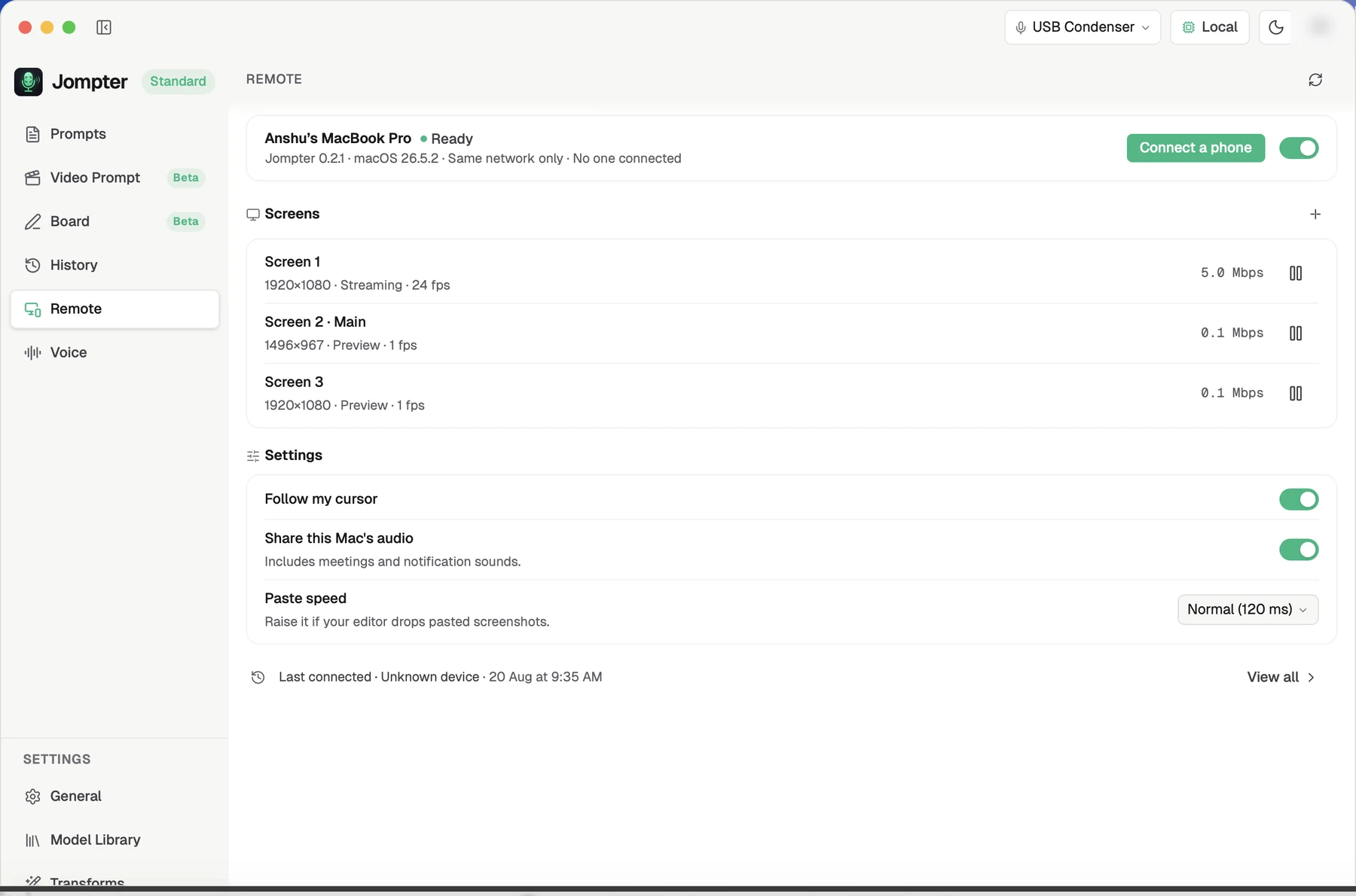
| Card | What it does |
|---|---|
| Status | Device name, master switch, and the connected viewer's IP, duration, frames and bytes. Shows Reconnecting or "Remote is on, but this Mac is not hosting" when something is off. |
| Scan to connect | The QR code — reveal it, or press New code. |
| Screens | Every display, with pause/resume per display, and Add a screen to create up to 3 virtual "software screens" at preset sizes. |
| Settings | Follow my cursor (on) · Share this Mac's audio (off) · Paste speed (Normal, 120 ms — raise it if your editor drops pasted screenshots). |
| Your other Macs | Rename, enable, disable, mark Trusted, or remove each Mac on your account. |
| Access history | Past sessions with a Live marker, and Clear behind a second press. |
Sleep, or don't
In Settings on the Remote page: two buttons, System default and Don't sleep. Don't sleep is the default.
This is the setting behind the most confusing failure Remote has: you open the phone, tap your Mac, and get nothing — because the Mac went to sleep while you were away, and a sleeping Mac cannot be woken from your phone. There is nothing running to answer, and no way to reach it over mobile data. macOS idle-sleeps after a few minutes by default, so without this the Mac is reachable only if you happen to catch it awake.
On Don't sleep, the Mac stays awake for as long as Remote is switched on — not just while someone is watching, which would be too late. The status line reads Kept awake, and Kept awake · on battery when that is costing you charge.
Choose System default for a laptop you would rather let sleep — Jompter then stops holding it awake and macOS decides as it normally would. Accept that Remote will only reach it while it happens to be awake.
Audio is off for a reason
Share this Mac's audio is off by default because system audio carries everything — your meetings, your calls, your notifications — not just the app you meant to share. Turn it on deliberately, and remember it stays on.
Audio needs two gates open: the Mac permitting it here, and the phone unmuting.
Virtual screens
Add a screen creates a display that does not physically exist, at a size you pick, up to three of them. Useful for giving your phone a workspace of its own rather than mirroring the monitor you are using.
Known limitations
Turning Remote off ends a live session immediately — the picture stops and so does the mouse, keyboard and capture. Removing the device from your account does the same. Either one is enough on its own; you no longer need to end the session first.
Earlier builds stopped only the video and left input flowing. If you are running a Jompter older than this page, end the session explicitly from the status card before turning the master switch off.
- Closing the lid still ends the session. Don't sleep covers idle sleep and
display sleep, but closing the lid is a different mechanism that no app can hold off. For
a Mac that must stay reachable with the lid shut, either keep it plugged in with an
external display attached, or run
sudo pmset -a disablesleep 1in Terminal — a system-wide setting that stops it sleeping at all, including in a bag, so undo it withsudo pmset -a disablesleep 0when you are done. - Remote uses several private Apple frameworks, so a macOS update can change how parts of it behave.
- Access history keeps any session that has not ended — Clear cannot remove a live one — and the clear itself is recorded in a server-side audit log that the account holder cannot erase.
- Off your own network, the connection falls back to a relay if one is configured; if not, the app tells you it is same-network only.