 Jompter Docs
Displays
Choose a screen, rearrange your monitors, and trade sharpness against bandwidth.
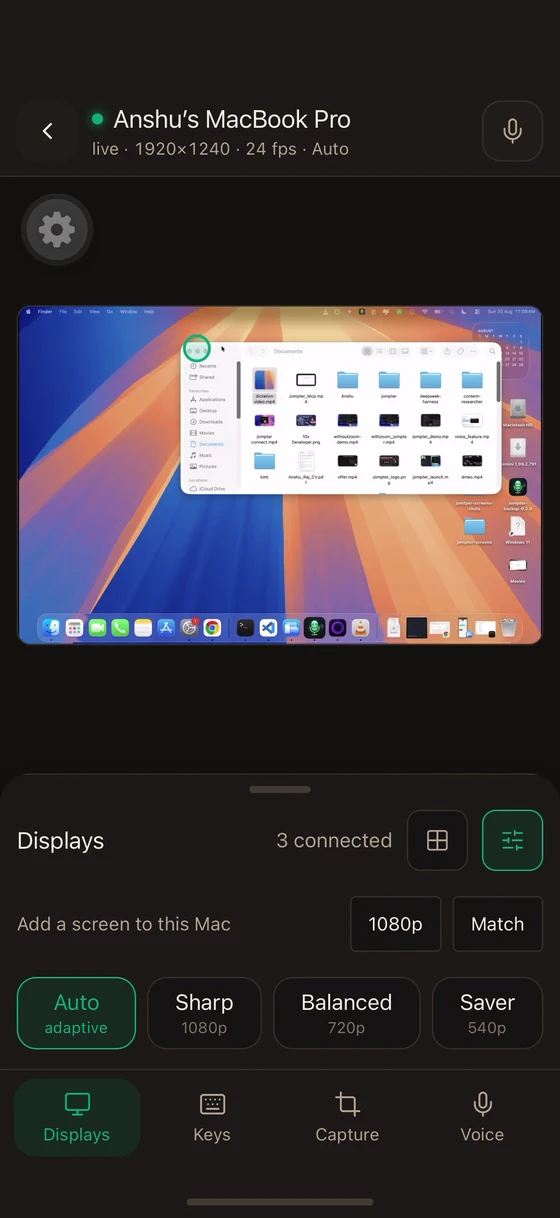
The Displays tab of the viewer dock.
Picking a screen
Every display on the Mac is listed, up to eight. Tap one to switch to it. Any display can be paused individually, which stops encoding it — worth doing for a monitor you are not looking at.
The arrangement canvas
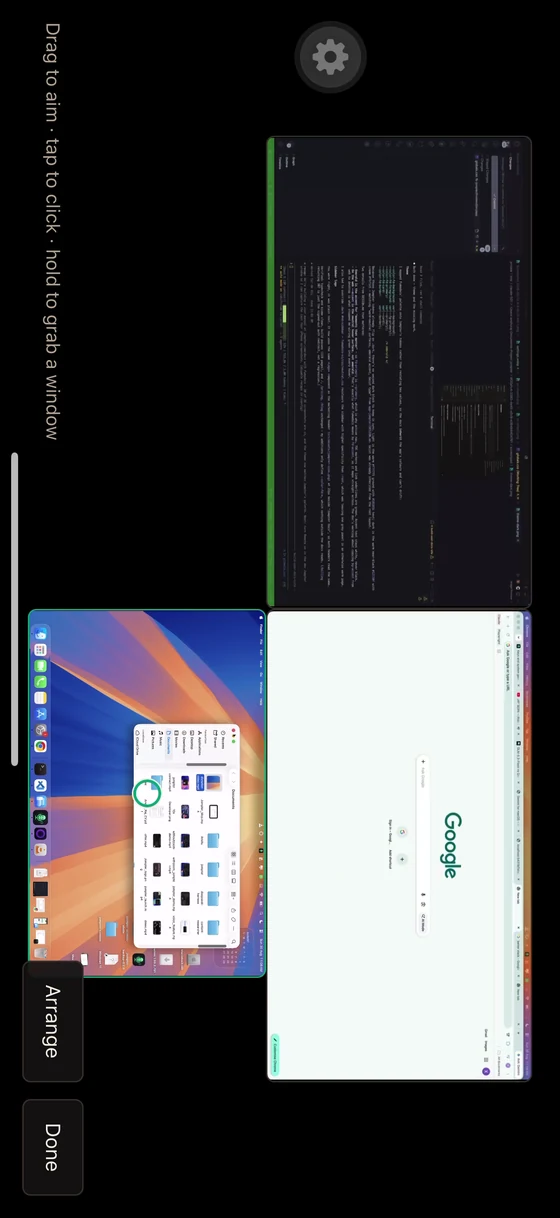
Arrange switches the viewer into a mode where you drag the Mac's windows and monitors around directly — "Drag to aim · tap to click · hold to grab a window". Done returns you to normal pointer control.
Virtual screens
Add a software screen creates a display that does not physically exist, at a size you pick, up to three. It gives the phone a workspace of its own instead of mirroring the monitor you are already using. Remove it when you are done.
Quality
Four presets:
| Preset | Resolution | Trade-off |
|---|---|---|
| Auto | adaptive | Follows the connection. The default |
| Sharp | 1080p | Best picture, most bandwidth |
| Balanced | 720p | The middle |
| Saver | 540p | Lowest bandwidth, softest picture |
The session header shows what you are actually getting — live · 1920×1240 · 24 fps · Auto.
If text is smearing or the picture keeps softening, you are bandwidth-limited — try Saver, or get both devices onto the same Wi-Fi band.