 Jompter Docs
Voice
Dictate into your Mac from your iPhone: hold the mic in Jompter Remote, review the transcript, then paste it where the Mac's cursor is.
The Voice tab of the viewer dock. Push to talk, and the words land on the Mac.
The audio goes to the Mac and is transcribed by the Mac's own engine, with the Mac's models and languages — the phone is a microphone, not a transcriber. Everything on Dictation applies.
How it works
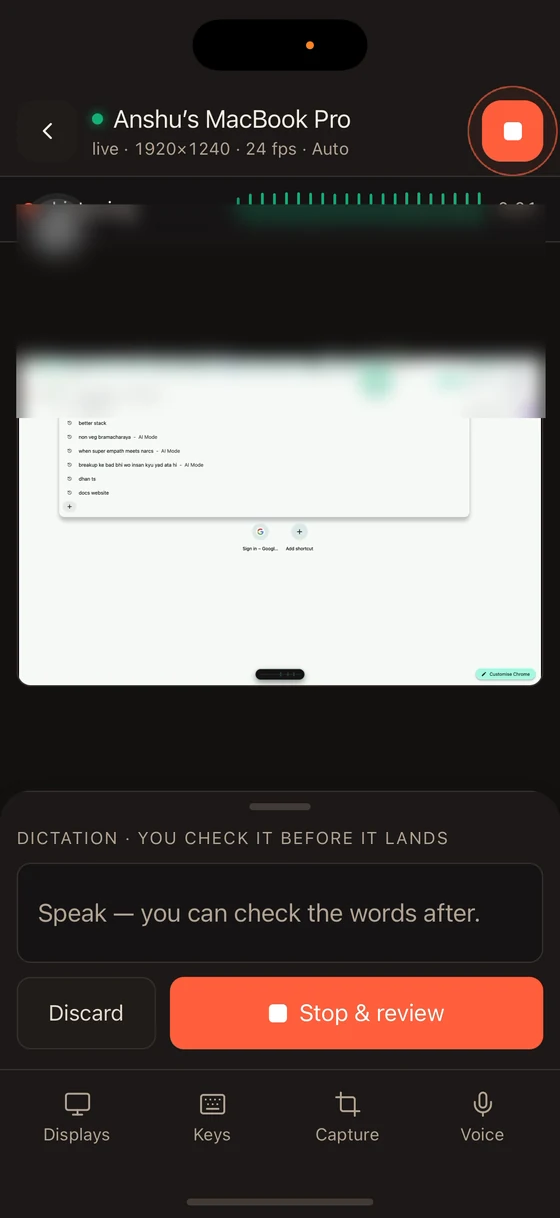
- Hold the mic button and speak — a live waveform and a timer show it is hearing you.
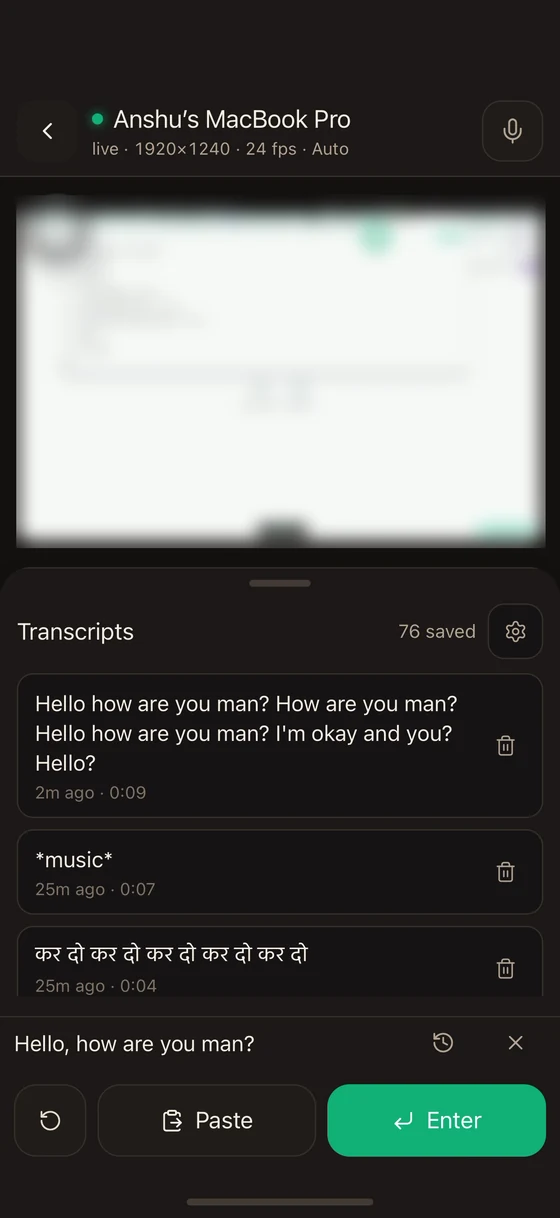
- Let go. The transcript appears in a review bar on the phone.
- Choose what happens to it:
- Paste — put it where the Mac's cursor is.
- Enter — paste it and press Return.
- Re-record — throw it away and try again.
Nothing is sent to the Mac until you tap Paste or Enter. A misheard sentence never reaches your editor.
Your saved dictations
The tab also lists the dictation history stored on the Mac, so you can find something you said earlier and delete entries you do not want kept.
Settings
A cog holds the one option here — the sound Jompter makes when a dictation starts and stops.
Requirements
The Microphone permission on the phone, and a Mac that can transcribe: a downloaded speech model in Local mode, or Cloud mode with an active plan.