 Jompter Docs
Settings and your account
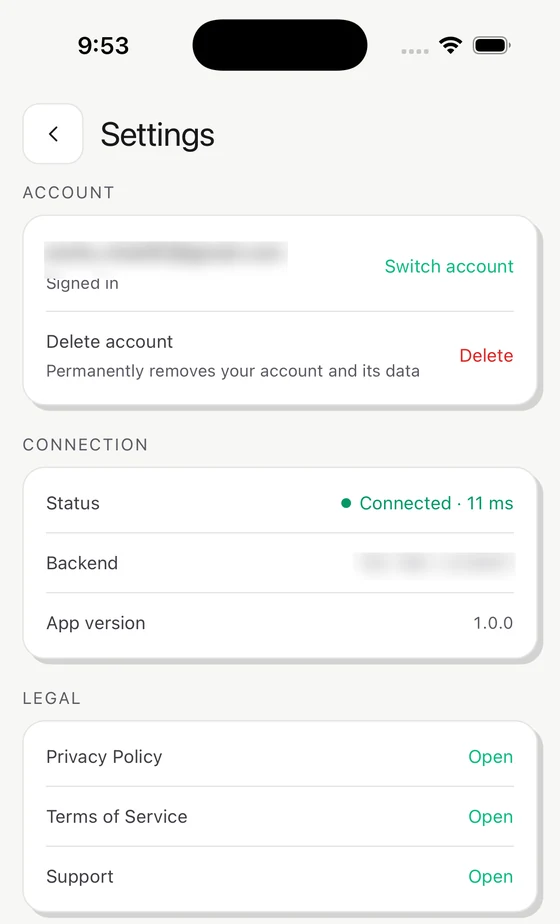
The Settings screen in the Jompter Remote iPhone app: your account, a live server-reachability check, sign out, and deleting your account.
The Settings screen in Jompter Remote is where you check your connection, switch or sign out of your account, and delete it. Open it from the gear on the device list.
Settings
- The account you are signed in as, with Switch account. Switching signs you out first, and the sign-in screen is where you pick the other account.
- The app version.
- A live check of whether Jompter's servers are reachable, with the round-trip time, refreshed every 30 seconds. If pairing is failing, look here first — if this is red, the problem is not your Mac.
- Links to Privacy, Terms and Support on jompter.com.
- Sign out.
- Delete account.
Why does Settings say Offline?
The status row reads Connected with the round-trip time in milliseconds, or Offline when Jompter's servers cannot be reached from this phone. Offline means the problem is the phone's network, not your Mac: check Wi-Fi or mobile data before anything on the Mac. If it says Connected and the Mac still will not appear, work through Troubleshooting Remote.
Deleting your account
Account deletion lives here, in the iPhone app — not on the website.
Confirm by typing your email address. Accounts that sign in with a password are asked for it as well; Google and Apple accounts have no password, so the email is enough. Jompter then removes:
- your account
- every signed-in session, on this phone, your Mac and the web
- every paired Mac
- your licence and subscription — a live subscription is cancelled first
- your usage history, including dictation minutes and free-trial records
This cannot be undone. If you only want to stop paying, cancel the subscription from Billing instead and keep the account.