 Jompter Docs
Pairing with your Mac
Pair your iPhone with your Mac in Jompter Remote: scan a single-use QR code that expires after two minutes, or type a six-digit code.
Sign in on both devices first, and make sure Remote is turned on on the Mac. Your Macs then appear on the app's home screen.
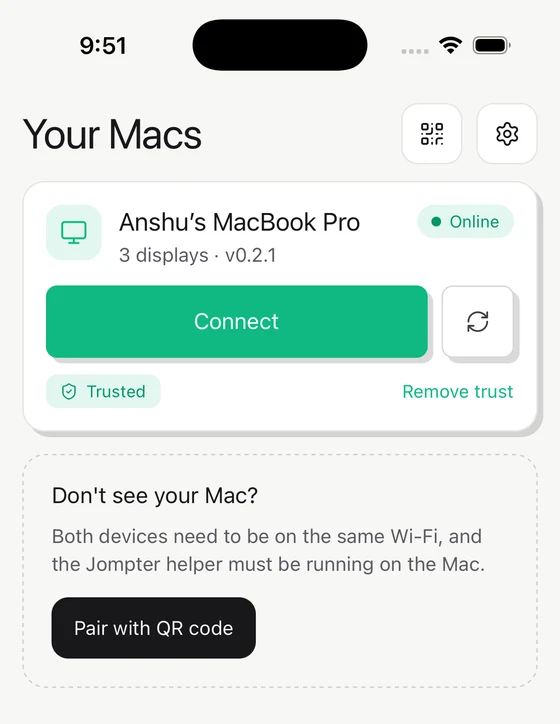
Option 1 — scan the QR code
The fastest route.
- On the Mac: Remote → Scan to connect to this Mac, and reveal the code.
- On the phone: Scan to connect, and point the camera at it.
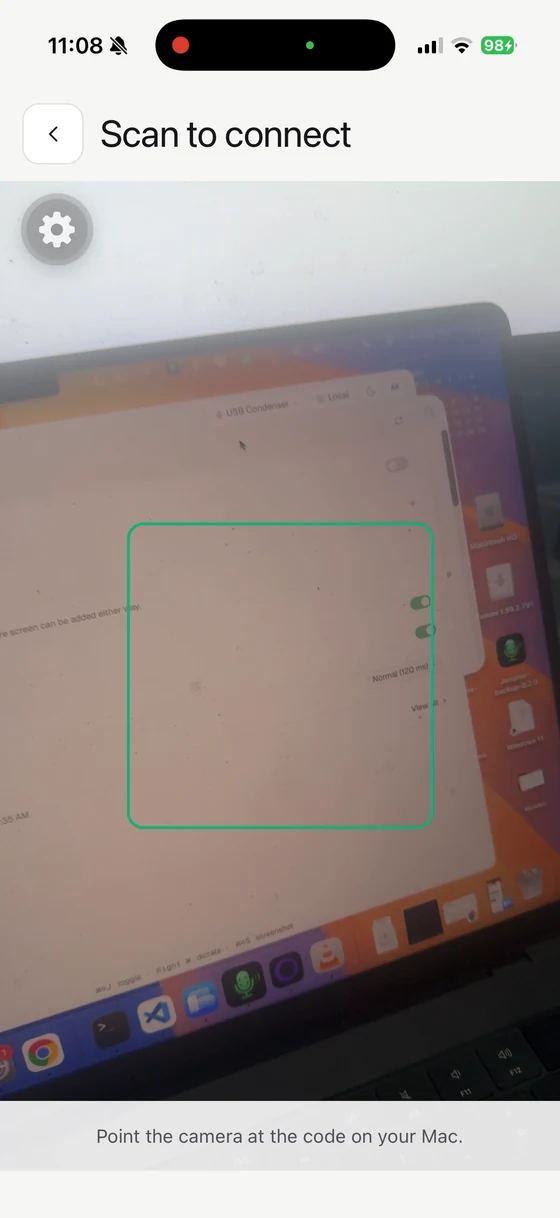
You land straight in the session. The iPhone's own Camera app also recognises the code and opens Jompter Remote for you.
Each QR code is single-use and expires after 2 minutes. New code on the Mac issues a fresh one and invalidates the old one.
Option 2 — the 6-digit code
For when the Mac's screen is not in front of you, or the camera will not cooperate.
- Tap the Mac in the list.
- The Mac shows a consent window: "A device is connecting" with six digits.
- Type them on the phone.
Whoever is at the Mac can also press Connect now in that window, which pulls the phone straight through without typing anything.
Trusting a Mac
The consent window offers to trust the device, which skips the code on later connections. The Mac's wording is worth taking literally: "Skips the code check — only if this is your own device, right now."
You can revoke trust from the Mac under Remote → Your other Macs, or remove a phone's access there entirely.
Managing devices
On the phone's home screen: pull down to refresh, swipe a row to delete a Mac, and tap one to connect.