 Jompter Docs
Dictation
Hold a key anywhere in macOS, talk, and let go. The text lands where you were typing.
Dictation is the reason Jompter exists. It works in every app — your editor, a browser, a chat window — because Jompter types the result into whatever has focus.
How to dictate
Hold Right ⌘, talk, let go. That is the whole thing.
Right ⌘ is a hold, not a chord. Tap it and the dictation bar opens. Hold it and you are recording. Release to finish.
The Dictate key does not have to be Right ⌘. In Settings → General → Shortcuts → Dictate you can set any key combination, or a single modifier on its own (Left or Right ⌘, ⌥, ⌃ or ⇧). Tap-to-open and hold-to-dictate work the same either way. See Shortcuts.
There are five ways to start:
- Hold the Dictate key — Right ⌘ by default.
- Hands-free — tap Right ⌥ to start, tap it again to stop.
- A three-finger trackpad click — click to open the bar, click-and-hold to dictate. Can be turned off in Settings → General → Shortcuts.
- Clicking the dictation bar itself.
- From your phone, over Remote.
A short sound plays when Jompter starts listening and another when it stops, so you know it heard you without looking. A hold only sounds once it is a hold, about a quarter of a second in, so a tap stays silent.
Hands-free
For a long thought, or when you need your hands to move around the screen while you talk:
- Tap Right ⌥ to start. Talk as long as you like, switch apps, scroll, take screenshots. Tap Right ⌥ again — or press Stop on the dictation bar — to finish.
- Or hold Right ⌥, click into the field you want the words in, in any app, and let go.
Either way the text is delivered exactly like a Right ⌘ hold — see where the text goes. Nothing is typed while you are still talking.
- Typing an accent cancels it. ⌥ + a letter while Right ⌥ is held is treated as an accent, and the session is dropped silently. The bar and the start sound wait about a quarter of a second, so an accent never flashes them.
- Right ⌘ is ignored during a hands-free session, so touching it — or pressing ⌘C — cannot end or discard what you have said.
- A forgotten session finishes itself after 30 minutes and delivers what it heard, rather than throwing it away.
Change the key in Settings → General → Shortcuts → Dictate hands-free. It takes one modifier on its own, not a combination, and cannot be the same key as Dictate.
Where the text goes
After a hold (or a hands-free session):
- It is typed into whatever has focus, in any app.
- It is also put on the clipboard. The bar says "Pasted — ⌘V pastes it again" — a line under the result on the card, a brief message on the pill — so ⌘V puts the same text somewhere else.
- A copy is appended to the prompt you have open in Jompter, or to the Draft if none is.
Starting by clicking the dictation bar types nothing: the transcript goes to the clipboard and into the open prompt or the Draft.
Screenshots while you talk
Take a screenshot mid-sentence — ⌘⇧S for a region or ⌘⇧F for the whole screen — and it does not interrupt the dictation, even with Right ⌘ held. In the prompt or Draft, the picture lands between the words you were saying when you took it, not at the end.
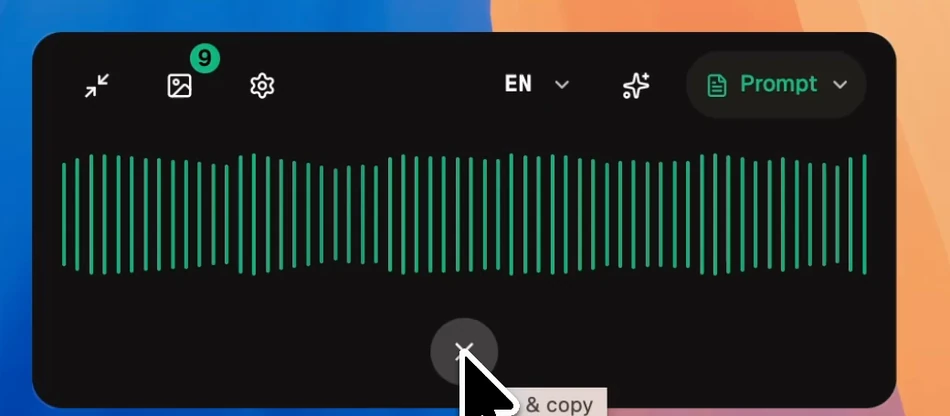
While you talk
Whether you see words appear as you speak depends on the model:
- Nemotron streams: partial words appear live.
- Parakeet transcribes when you stop, like Whisper.
- Whisper, sherpa and cloud models transcribe when you stop.
Either way, the finished transcript is inserted the moment it is ready.
After the transcript lands
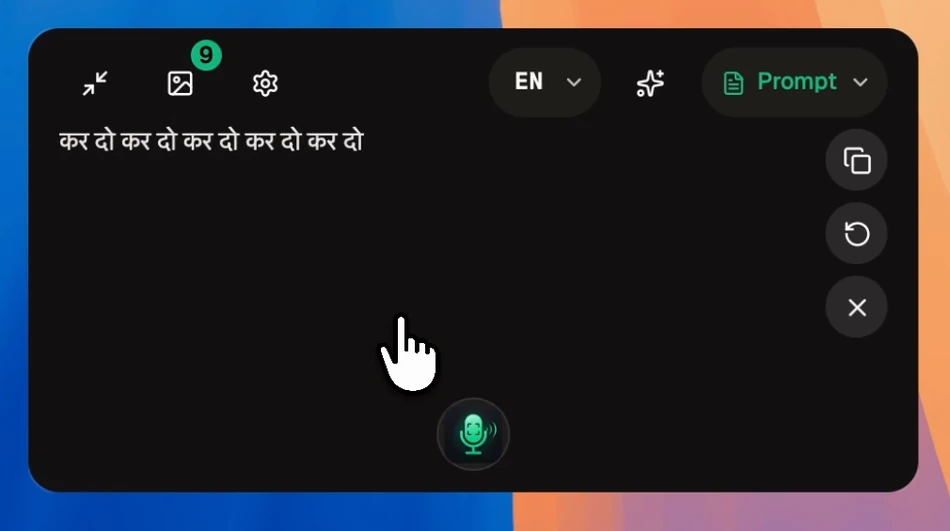
The dictation bar keeps a set of actions on the last result:
| Action | What it does |
|---|---|
| Undo paste | Backspaces exactly what Jompter typed. |
| Paste last transcript | Inserts it again — useful for putting the same text into a second app. |
| Copy | Puts the transcript on the clipboard. |
| Re-apply a transform | Runs a different transform preset over the same words, without re-speaking them. |
Undo paste counts characters, it does not remember content. If you typed something yourself between the paste and the undo, those characters get eaten too. Undo immediately, or not at all.
Languages and translation
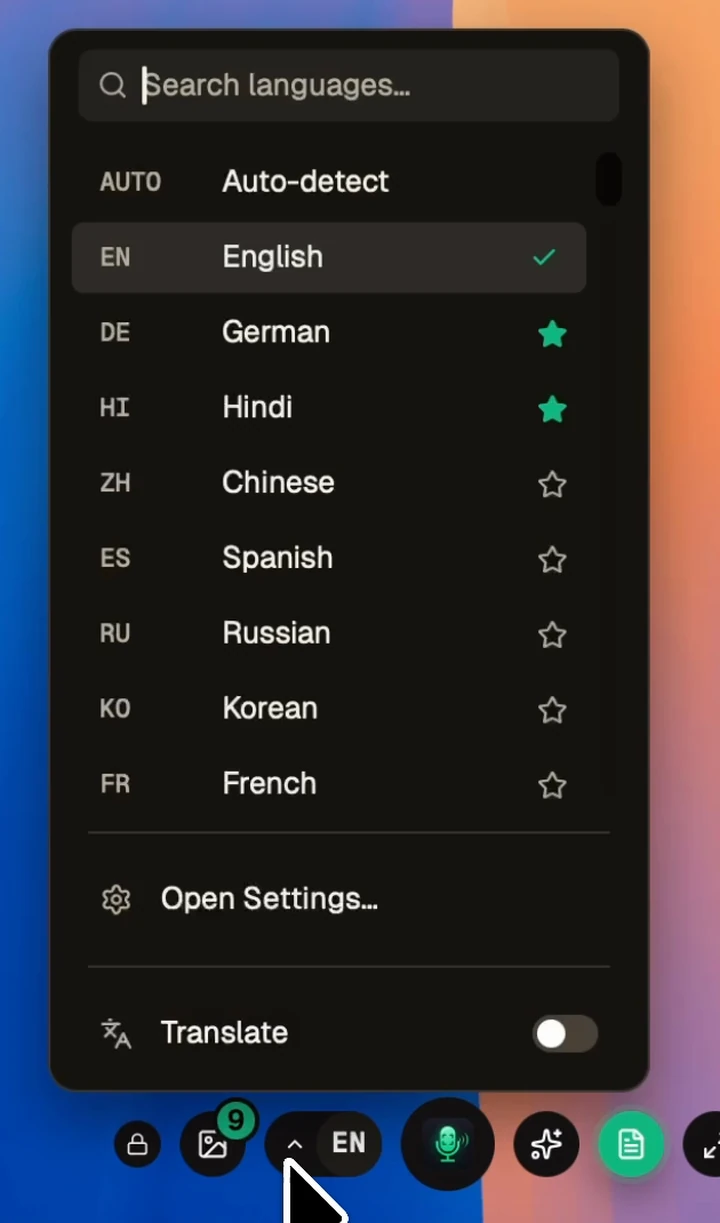
The dictation bar has a source-language picker — searchable, with Auto-detect at the top and a star against each language so the ones you use sit together — and a Translate toggle in the same panel. Set the defaults in Settings → General → Dictation (Language, Translate transcripts, Target language). Pin the languages you actually use as favourites so they are one click away.
English-only Whisper models (the ones ending .en) cannot transcribe another language. If
you pick one and then select a non-English language, Jompter shows a warning banner rather
than failing silently.
Transforms
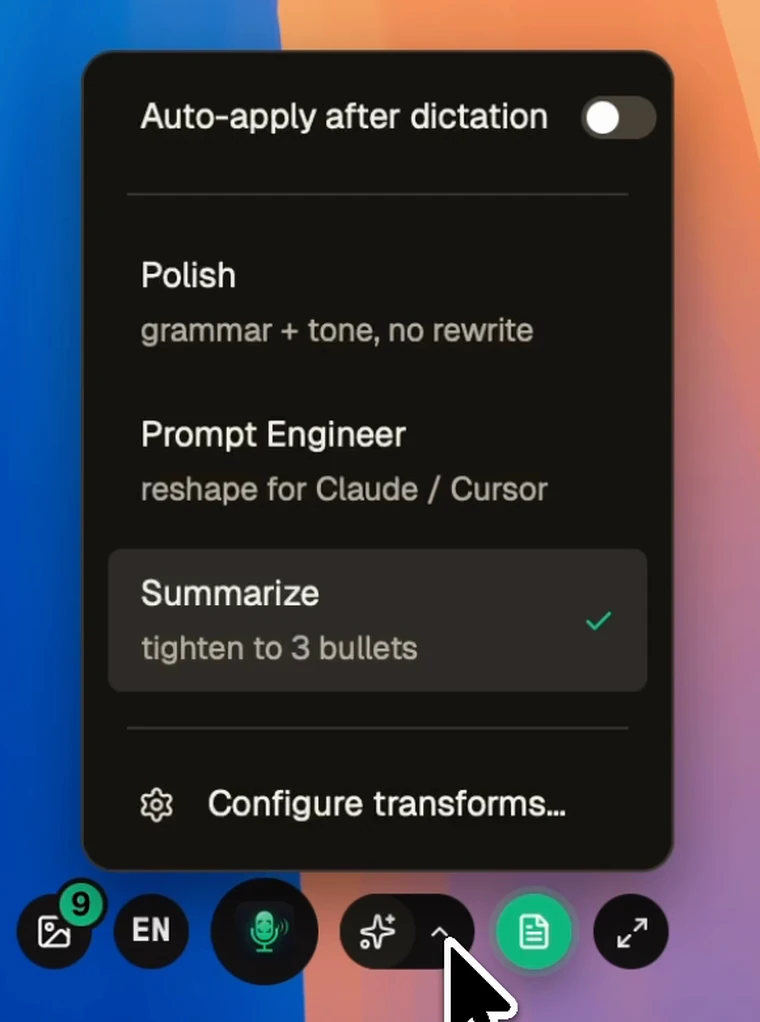
A transform is a small prompt that cleans up the transcript before it is inserted — Polish (grammar and tone, no rewrite), Prompt Engineer (reshape it for Claude or Cursor), Summarize (tighten to three bullets). Pick one from the dictation bar, or turn on Run a transform after each dictation in Settings → Transforms to apply one automatically.
Local and Cloud
In Local mode transcription runs on your Mac, offline, using whichever speech model you downloaded. In Cloud mode it runs on our servers.
If a cloud transcription fails or you hit a fair-use limit, Jompter quietly falls back to your local model and carries on. It does not announce this. If accuracy suddenly changes character mid-session, that is usually why — check Usage.
Nothing happens when I hold the key
In order of likelihood:
- Accessibility or Remote input is not granted — Remote input is a separate permission. Holding the key starts working as soon as Accessibility is granted; there is no need to restart Jompter. See Permissions.
- No plan is active — dictation is gated. See Plans.
- In Local mode, no speech model has been downloaded yet. See AI models.
- Another app has grabbed Right ⌘. Pick a different Dictate key in Settings → General → Shortcuts.
- A hands-free session is running — Right ⌘ is ignored until you tap Right ⌥ again or press Stop on the bar.