 Jompter Docs
The Mac app
A map of the Jompter Mac app: every screen, window and feature, from dictation and screenshots to Video Prompt, boards, MCP and Remote.
Jompter is a single window plus a set of floating helpers that appear when they are needed. This page is the map; each feature has its own page.
What it does
- Dictate anywhere — hold Right ⌘ and talk, or tap Right ⌥ to go hands-free (tap again to stop, or hold it, click into a field and let go). A short sound marks the start and the stop, and the text is typed where you are and left on the clipboard, so ⌘V pastes it again. →
- Screenshots — ⌘⇧S for a region, ⌘⇧F for the whole screen the pointer is on. Take one while you are talking and it lands between the words you were saying. →
- Prompts and to-dos — a prompt can become a to-do list that an AI agent, connected
through Jompter's MCP server (named
jompter), works through. The agent proposes; nothing starts until you approve it. → - Video prompts, Board, Speak and Remote — each in the sidebar below.
- Your own shortcuts — every one can be rebound, and Reset to defaults puts them all back. →
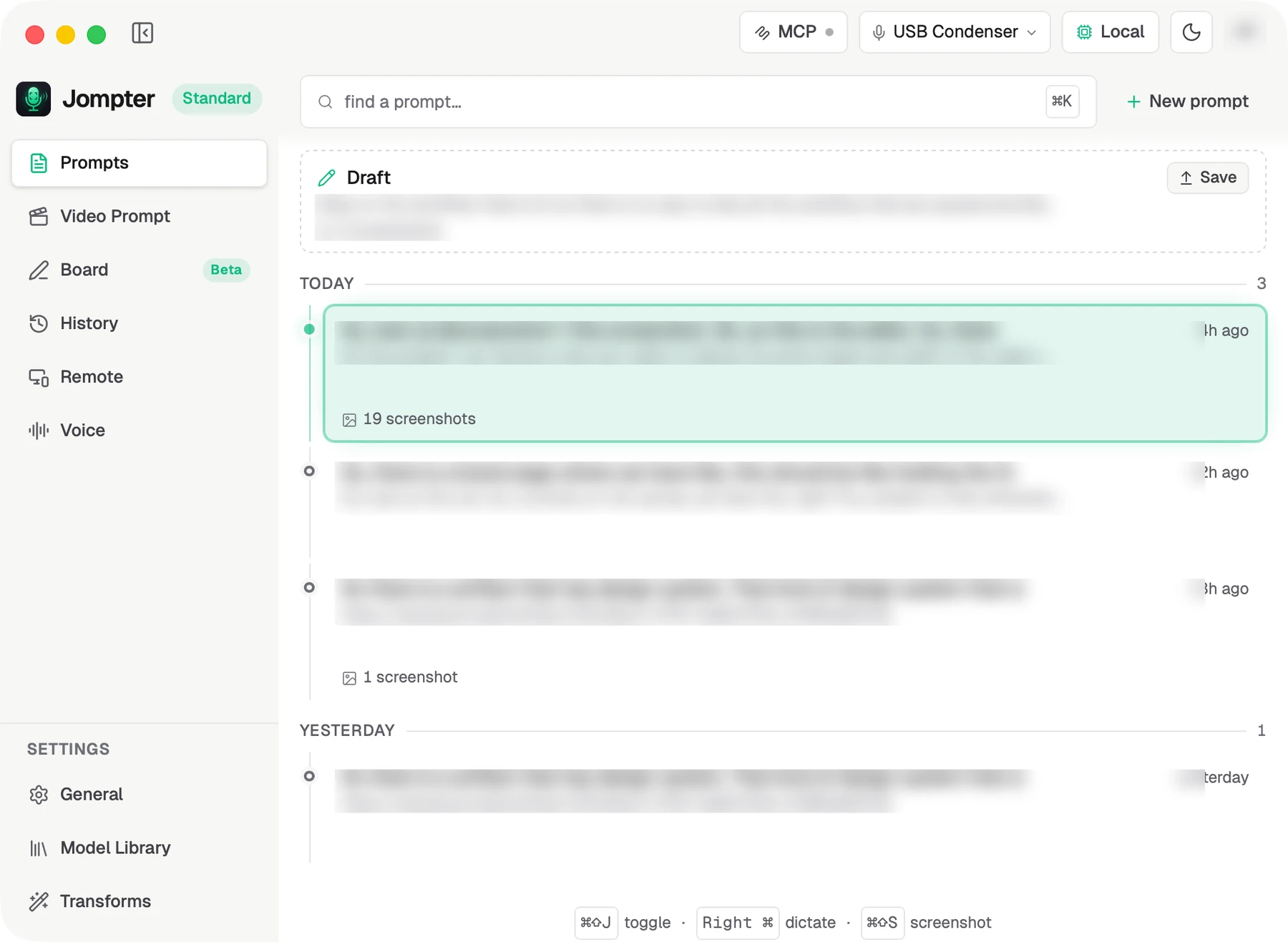
The sidebar
| Item | What it is |
|---|---|
| Prompts | The rolling prompt you are building, every prompt you have saved, and their to-dos. → |
| Video Prompt (Beta) | Screen recordings compiled into a prompt. → |
| Board (Beta) | A whiteboard you — or an AI agent — can draw on. → |
| History | Every dictation, replayable and re-transcribable. → |
| Remote | Hosting this Mac for the phone app. → |
| Voice | Opens Settings → Voice, where Speak is configured. → |
| General | Settings. → |
| Model Library | Download and switch AI models. → |
| Transforms | Presets that clean up a transcript. → |
At the bottom sits either a trial meter (days left, words used) or an upsell card, and the sidebar collapses to icons if you want the room.
The header
Microphone picker · a Local / Cloud pill · the theme toggle · your account avatar, which opens Settings → Account. An Offline chip appears when there is no network.
The other windows
Jompter opens small purpose-built windows rather than crowding the main one.
- The dictation bar — always on top, at the bottom of the screen, showing what is being heard. →
- The screenshots panel — a detachable tray of everything you have captured. →
- The annotation canvas — full-screen, for marking up a screenshot. →
- The region picker and recording toolbar — for video capture. →
- The recording indicator — a small dot with a timer while the microphone is live.
- The consent window — when a phone asks to connect. →
Two things worth knowing on day one
Closing the window does not quit Jompter. It hides. Press ⌘⇧J or click the menu bar icon to bring it back. Quit Jompter lives in the menu bar popover.
There are no notifications. Jompter never posts a macOS notification — not when a transcription finishes, not when a model download completes, not when a phone connects. If you are waiting on something, the app has to be in front of you.
The menu bar
Clicking the menu bar icon gives you: show/hide Jompter · move it to this display · open general settings · show/hide the dictation bar · the screenshot panel · change microphone · quit. The icon's colour tells you whether you are in Local or Cloud mode.