 Jompter Docs
Settings
Every setting in the Jompter Mac app, where it lives and what it changes: shortcuts, speech models, cloud, transforms, Speak, video and MCP.
Open Settings from the sidebar (General), the header avatar (Account), or the menu bar. Esc closes the panel.
Five tabs: General, Model Library, Voice, Transforms, Account.
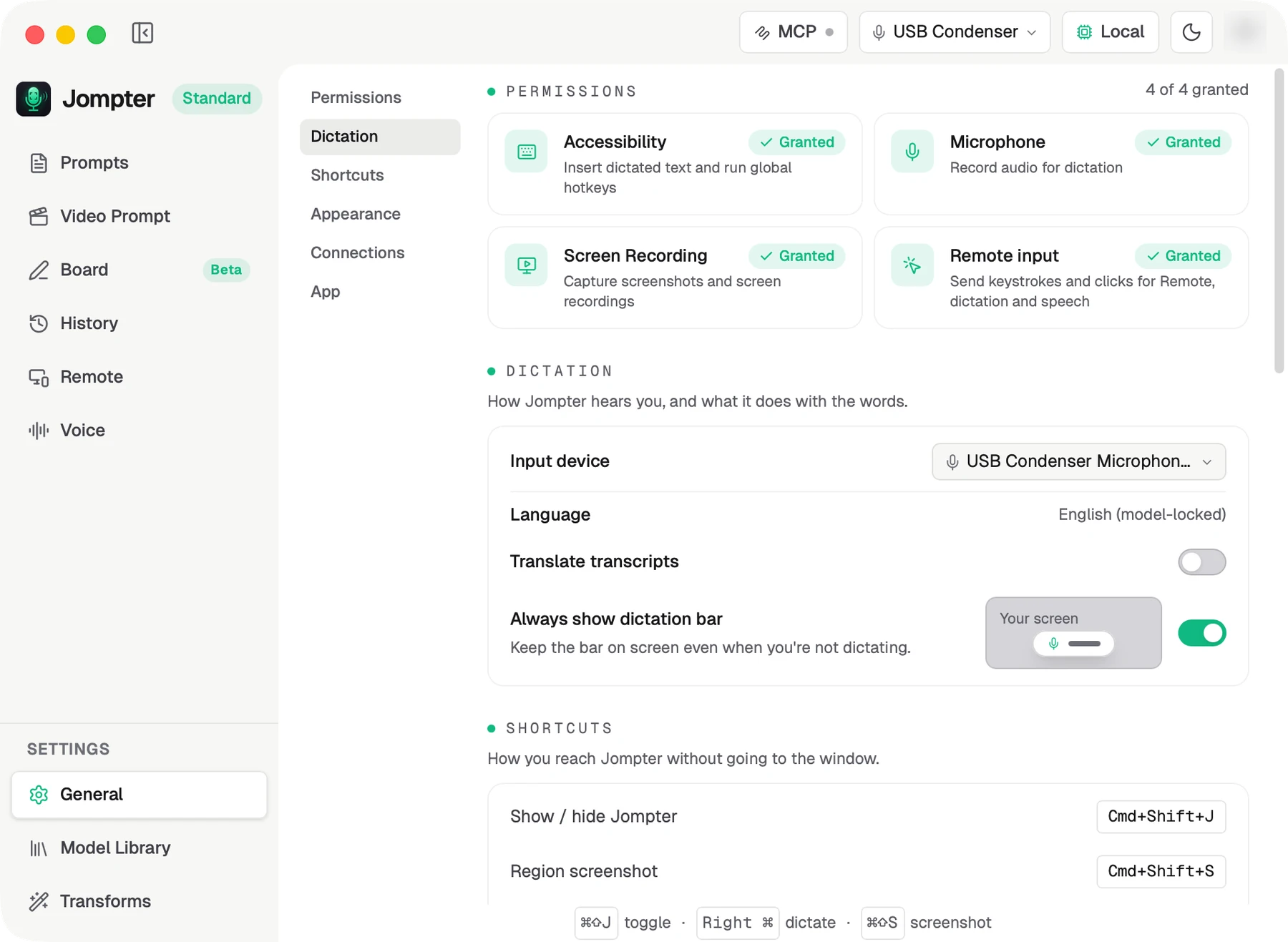
General
General is one scrolling page in six groups. A rail down the left side jumps to each group and highlights the one you are in: Permissions, Dictation, Shortcuts, Appearance, Connections, App.
Permissions
A band at the top with a count — "2 of 4 granted" — and a chip each for Accessibility, Microphone, Screen Recording and Remote input. A chip still missing its permission has an Open settings button; it turns to Granted only once macOS actually reports it. See Permissions.
Dictation
How Jompter hears you, and what it does with the words.
- Input device, and your transcription Language.
- Translate transcripts on or off, and the Target language.
- Always show dictation bar — off by default. A small picture beside the switch shows a screen with the bar on it, or without.
Shortcuts
How you reach Jompter without going to the window. All rebindable — see Keyboard shortcuts for how recording a key works.
- Show / hide Jompter — ⌘⇧J
- Region screenshot — ⌘⇧S
- Full-screen screenshot — ⌘⇧F (the whole screen the pointer is on — no region to drag)
- Dictate — Right ⌘ (tap to open · hold to dictate; a key combination or a lone modifier)
- Dictate hands-free — Right ⌥ (tap to start, tap again to stop — or hold, click into a field, and let go; a lone modifier only)
- Speak selection — ⌘⇧A
- Dictate — trackpad gesture, a switch (three-finger click to open · click-and-hold to dictate)
Reset to defaults appears beside the group title whenever any shortcut has been changed.
Appearance
How Jompter looks on your screen. Each setting has a live preview beside it — change it and watch the picture change.
- Theme — System, Light, Dark. Set to System, the preview shows both halves, because System means whichever one macOS is in.
- Dictation bar style — Pill or Card (default Card). The preview behaves like the style you chose; point at it and a Pill expands. →
Connections
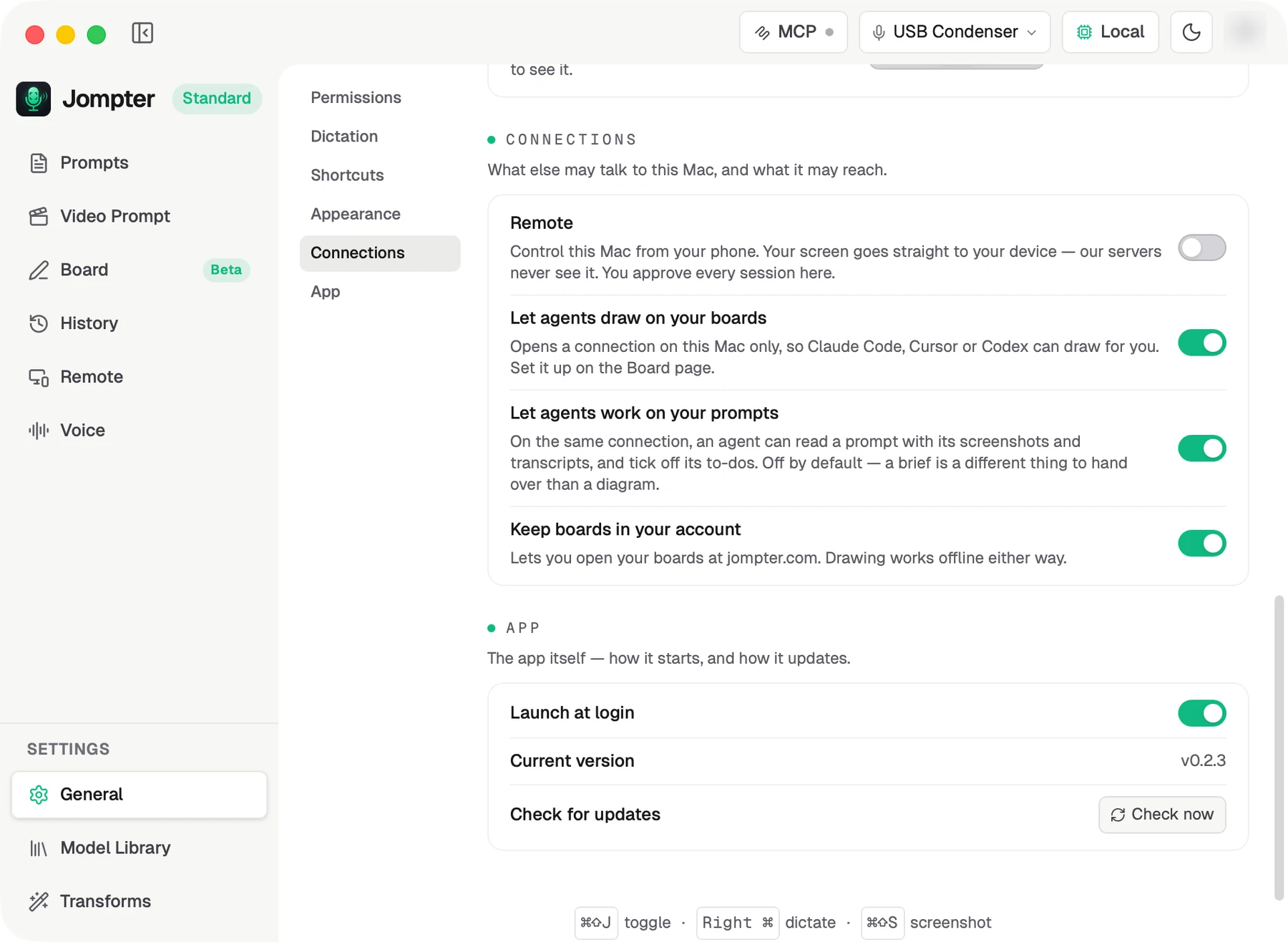
What else may talk to this Mac, and what it may reach.
| Setting | Default | What it does |
|---|---|---|
| Remote | Off | "Control this Mac from your phone. Your screen goes straight to your device — our servers never see it. You approve every session here." → |
| Let agents draw on your boards | Off | Opens a local-only connection so Claude Code, Cursor or Codex can draw. → |
| Let agents work on your prompts | Off | On the same connection, an agent can read a prompt with its screenshots and transcripts, and tick off its to-dos. Needs the board switch on first. → |
| Keep boards in your account | Off | Lets you open your boards at jompter.com. Drawing works offline either way. → |
The two agent switches are separate on purpose: handing over a brief with its screenshots and transcripts is a different thing from handing over a diagram.
App
The app itself — how it starts, and how it updates.
- Launch at login — off by default.
- Your current version, Check for updates, and Update & restart with progress. See Updating.
Model Library
Voice
Transforms
A transform is a small instruction Jompter runs over a transcript before inserting it.
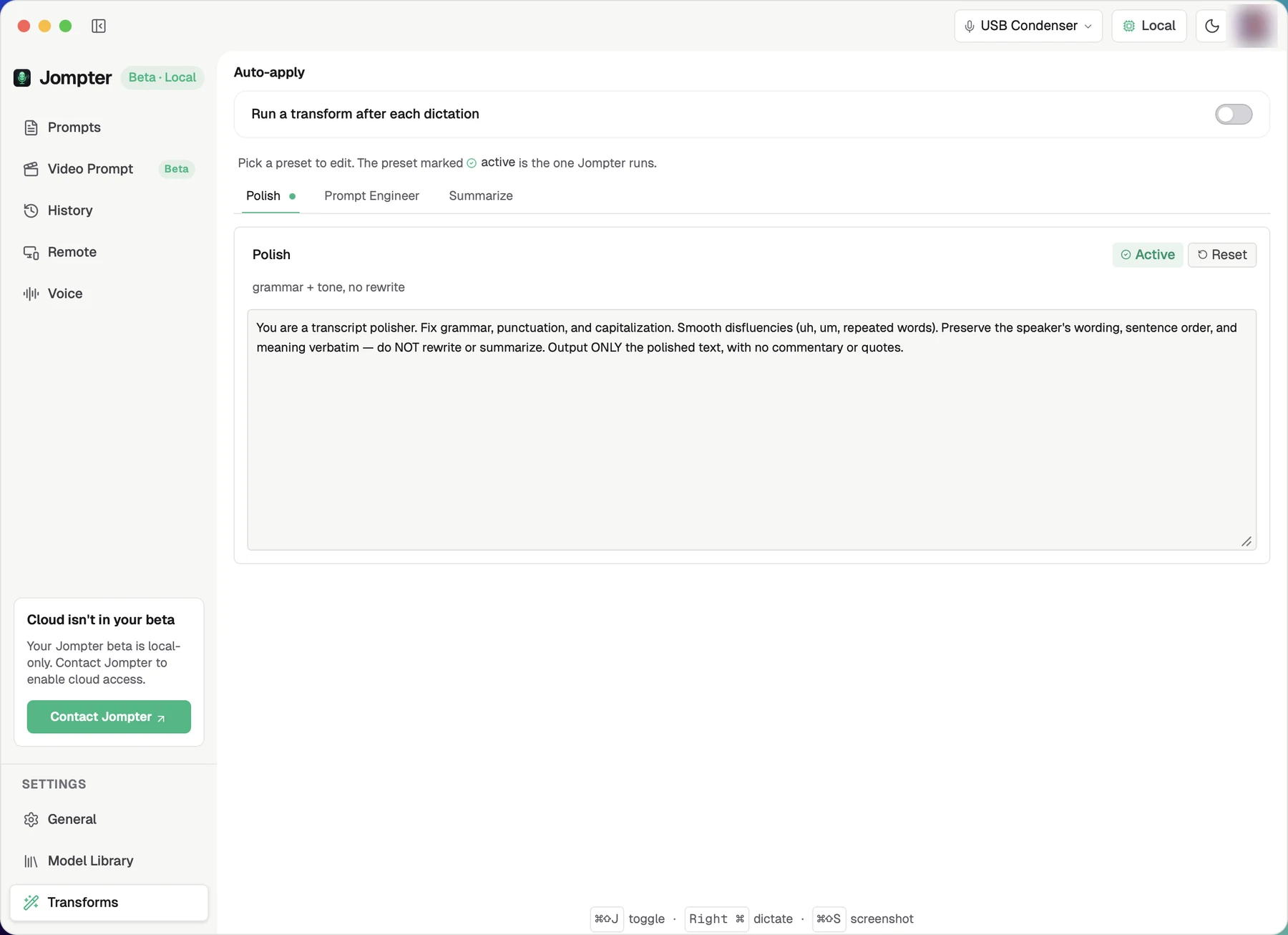
- Run a transform after each dictation — off by default. On, every dictation is passed through the selected preset.
- Three built-ins:
- Polish — grammar and tone, no rewrite.
- Prompt Engineer — reshape it for Claude or Cursor.
- Summarize — tighten to three bullets.
- Each preset has a label, a one-line description, and an editable system prompt. The one badged Active is the one Jompter runs; Reset undoes your edits to a built-in.
There is no way to test a preset without dictating something — say a sentence and look at the result.
Account
Your account on the Mac covers signing in, devices and licence activation.
Where settings are stored
~/Library/Application Support/com.jompter.desktop/settings.json. The full list of
defaults is in the settings reference.
Hosting Remote on your Mac
Set up your Mac so the Jompter iPhone app can see and control it: turning Remote on, permissions, pairing codes, and the peer-to-peer video.
Keyboard shortcuts
Jompter's global hotkeys for Mac: hold Right ⌘ to dictate, ⌘⇧S for a region screenshot, ⌘⇧A to read aloud, ⌘⇧J to show the window, and more.