Jompter Docs
The dictation bar
The always-on-top strip that shows what Jompter heard and what it will do with it.
The dictation bar sits at the bottom of your screen, above everything else, and is always dark regardless of your theme. It is where dictation and Speak show their state.
Pill or card
Two layouts, set in Settings → General → Appearance → Dictation bar style:
- Card (default) — a draggable bar with every control visible.
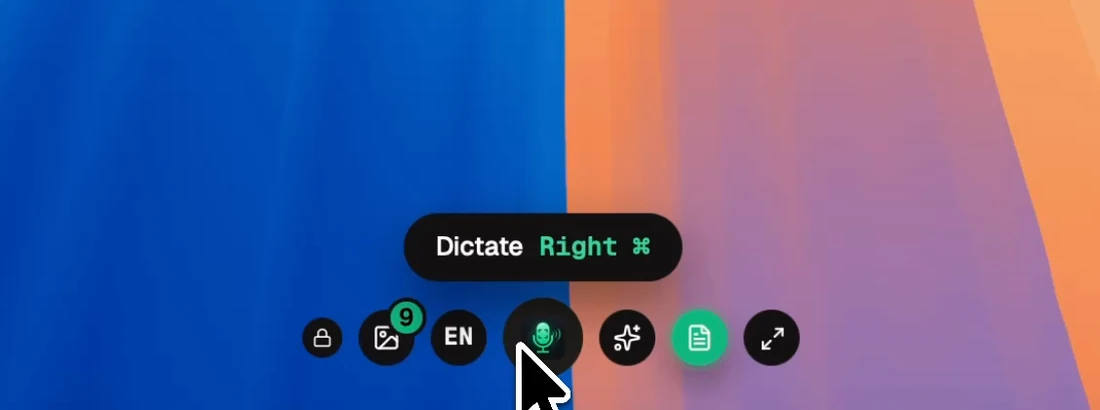
- Pill — a small dot that expands into the controls when you hover it.
Speak sessions always use the card layout, whatever your preference, because playback needs the extra controls.
When it shows up
With Always show dictation bar off (the default), the bar appears for the duration of a hold-to-dictate or hands-free session and hides again when it settles. For hands-free it waits about a quarter of a second after Right ⌥ goes down, so typing an ⌥ accent never flashes it. Anything you do deliberately — tapping Right ⌘, opening it from the menu bar, turning Always show on — keeps it on screen.
If you have more than one display, Jompter puts a copy on each. You cannot position it by hand; the menu bar's Move to this display is the control you have.
What is on it
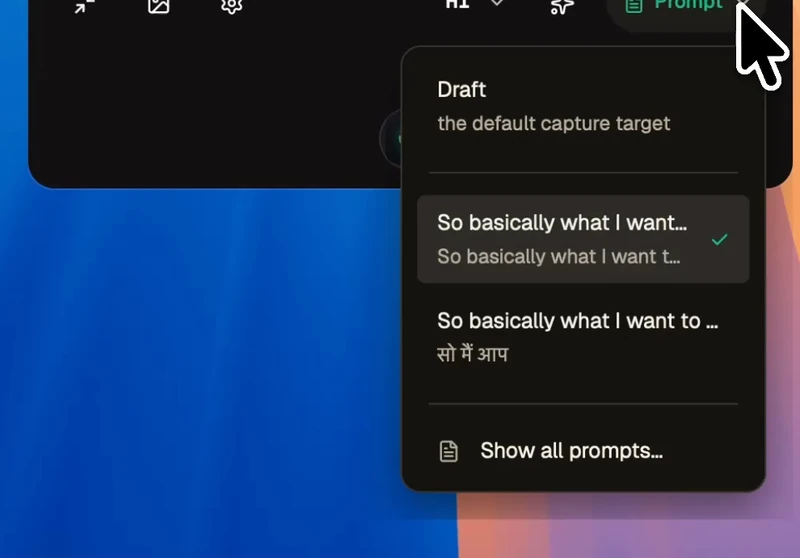
Start, stop and cancel · copy the transcript · insert it again · the source-language picker · the translate target (click to cycle) · the transform picker · which prompt the text should go into (the Draft, or a recent prompt) · a way into your screenshots · collapse to the pill · and, during Speak, pause, resume, replay, stop and dismiss.
A hands-free session shows Stop and Cancel, since there is no key held to let go of. After a transcript has been typed into another app, the bar confirms "Pasted — ⌘V pastes it again": a line under the result on the card, a brief message on the pill.
The bar's own menu
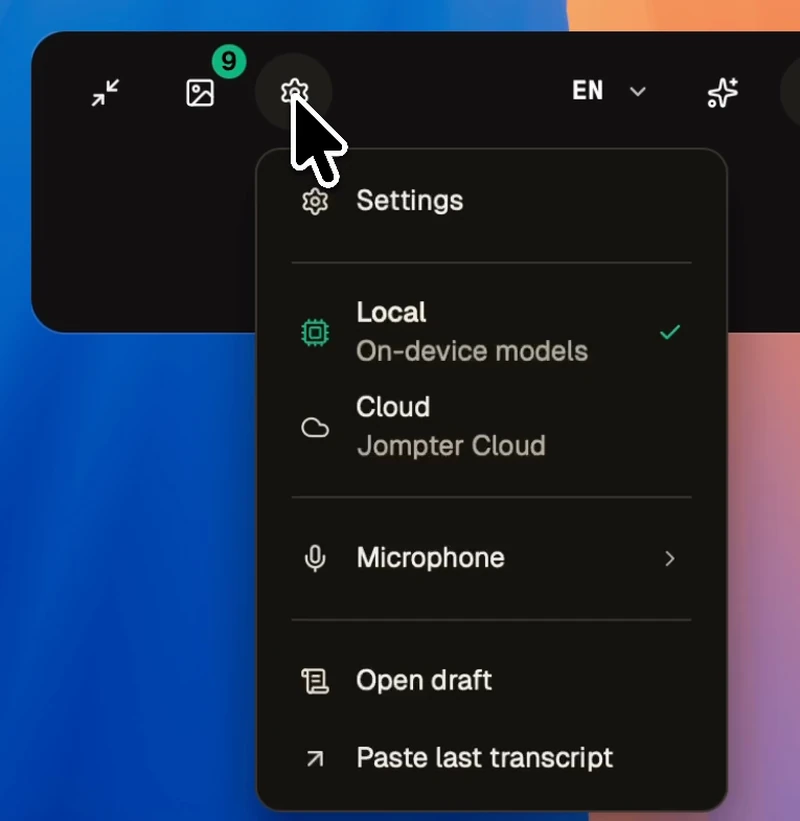
Click the gear on the bar — or right-click the bar — for the things you reach for mid-flow: Settings, the Local ↔ Cloud switch, a Microphone submenu, Open draft, and Paste last transcript.