 Jompter Docs
Prompts and the Draft
The rolling prompt everything you capture feeds into, and how to get it out.
A prompt in Jompter is a document you build by talking and capturing rather than typing. It holds text, screenshots and transcripts, and turns into Markdown when you are ready to hand it to an assistant.
The Draft
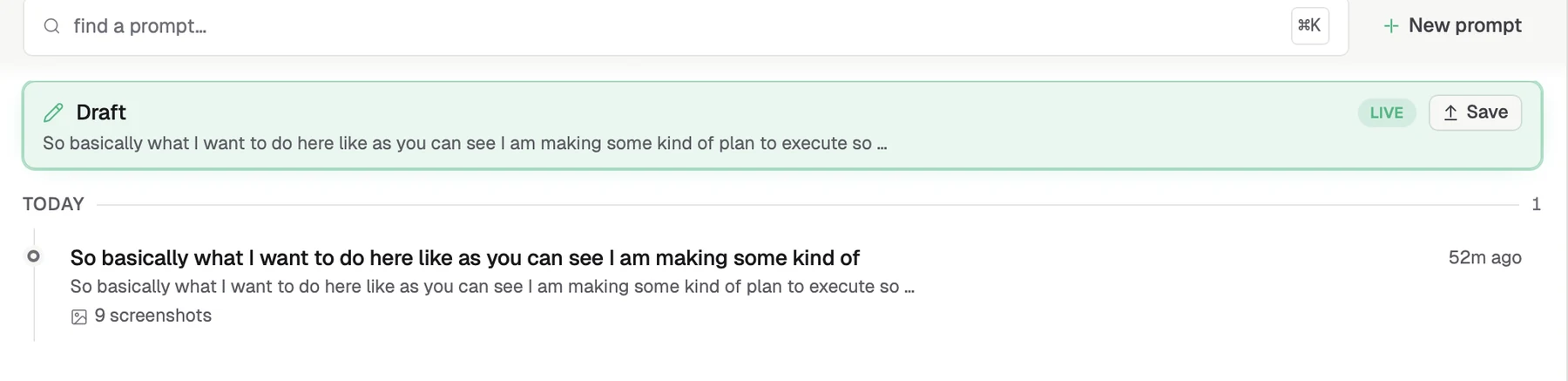
The Draft is the always-available target. When no prompt is open, dictation and screenshots land here, so you never have to decide where something goes before you capture it. When the Draft turns into something worth keeping, Save the Draft as a new prompt.
Working in the editor
The editor is rich text. Beyond typing:
| Action | How |
|---|---|
| Insert a screenshot | Type @ and pick one — or capture a new one from the same menu |
| Add an image | Paste it, or drag a PNG, JPG or WebP onto the editor |
| Add a video | Drag it onto the editor — it is imported as a Video Prompt |
| Annotate a screenshot | Click Annotate on the inline image. → |
| Clear the prompt | Clear, then click again to confirm |
Screenshots appear inline as thumbnails, and each gets an @screenshot-N reference that
the compiled Markdown points at.
Getting it out
Two buttons, and the difference matters:
- Copy prompt — the compiled Markdown, with
@screenshot-1,@screenshot-2references where the images were. - Copy image — the same Markdown plus the actual image files. One paste into Claude.ai or ChatGPT attaches everything at once.
If your assistant reads files from disk instead (Cursor, Claude Code), use Copy file paths to the clipboard from the screenshots panel and paste the paths.
To-dos: turning a prompt into work
A saved prompt (not the Draft) has three tabs across the top: Prompt (the editor), To-do and Done. The to-do list is kept separately from the text, so editing the prompt never disturbs it, and an AI agent on your Mac can read it and report progress back.
Handing a prompt to an agent
- Turn on Let agents work on your prompts — under the board switch in the MCP panel, or in Settings → General → Connections. It is off by default, and needs agent access switched on first. Setup → Install the Prompts skill too, so the agent follows the plan-then-approve loop. Agent skills →
- Click the id chip (
#and the first eight characters) in the prompt's header, or on a prompt card when you hover it. It copies a line your agent can act on: "Jompter prompt id: … (call get_prompt with it)". - Paste that line into your agent. It reads the brief, opens the screenshots and any recordings, and proposes a to-do list.
Installing the Prompts skill for your agent makes it much better at this — it reads your code before planning, and keeps the list honest as it works.
Make to-dos writes a list with Jompter's own model instead, when no agent is connected. It works from the words alone: it cannot see the screenshots, so an agent that can open them usually writes the better list.
Approving the plan
Every to-do an agent (or Make to-dos) writes arrives Proposed, with its steps shown on the row so you can judge the plan without opening each one. The To-do tab shows how many are waiting for review.
- Approve a to-do, or Approve all at once.
- Changes opens it with a note box — say what should be different. It is marked Changes requested, and Copy revise line gives you a line telling the agent to revise those.
- Once nothing is left to review, Copy go line gives you the line that sends the agent off to work through them.
The agent is never told about your review on its own — each hand-off is a paste. It also cannot skip the review: Jompter refuses to let an agent start or finish a to-do you have not approved, or approve one itself. If it rewrites the text of an approved to-do, it goes back to Proposed. To-dos you add yourself (Add a to-do) count as approved.
Watching the work
While an agent works, a strip above the editor shows the current to-do and progress, such as Working or Needs you when the agent is blocked on a question. A to-do left in progress for 20 minutes with no agent connected reads Went quiet; Reset puts it back on the list.
Open a to-do to see its detail:
- Cause — what was really wrong, when that differs from what you described.
- What happened — what the agent actually changed, with how it checked: Verified (seen working), Tests only, or Not verified. The same badge shows on the row.
- Steps, a note box for saying what is still wrong, and the Activity trail — every change, who made it, and the notes the agent left as it worked, so the next session picks up where the last one stopped.
A @screenshot-N mentioned in a to-do shows as the picture's thumbnail. Finished to-dos move
to Done, grouped by day. You can tick a to-do off, edit it or delete it by hand at any
time.
Managing prompts
The list groups by recency and scrolls forever. Each prompt can be opened (which makes it the active capture target), duplicated or deleted. Duplicate copies the text, screenshots and videos but not the to-dos.
Prompts never leave your Mac. There is no prompt sync and no web view of them. They live in files on this machine, so back it up if they matter. An agent you connect reads them on this Mac, and only while Let agents work on your prompts is on.