 Jompter Docs
Keyboard shortcuts
Jompter's global hotkeys for Mac: hold Right ⌘ to dictate, ⌘⇧S for a region screenshot, ⌘⇧A to read aloud, ⌘⇧J to show the window, and more.
The complete list, including the canvas and panel keys, is in the shortcuts reference. The ones you will use daily:
| Shortcut | Action |
|---|---|
| ⌘⇧J | Show / hide the Jompter window |
| ⌘⇧S | Capture a screen region |
| ⌘⇧F | Capture the whole screen the pointer is on — no region to drag |
| Right ⌘ | Tap to open the dictation bar · hold to dictate |
| Right ⌥ | Dictate hands-free — tap to start, tap again to stop · or hold, click into a field, and let go |
| ⌘⇧A | Speak the current selection aloud |
| Three-finger trackpad click | Open the bar · click-and-hold to dictate |
All six keys are rebindable in Settings → General → Shortcuts, and the trackpad gesture can be turned off there.
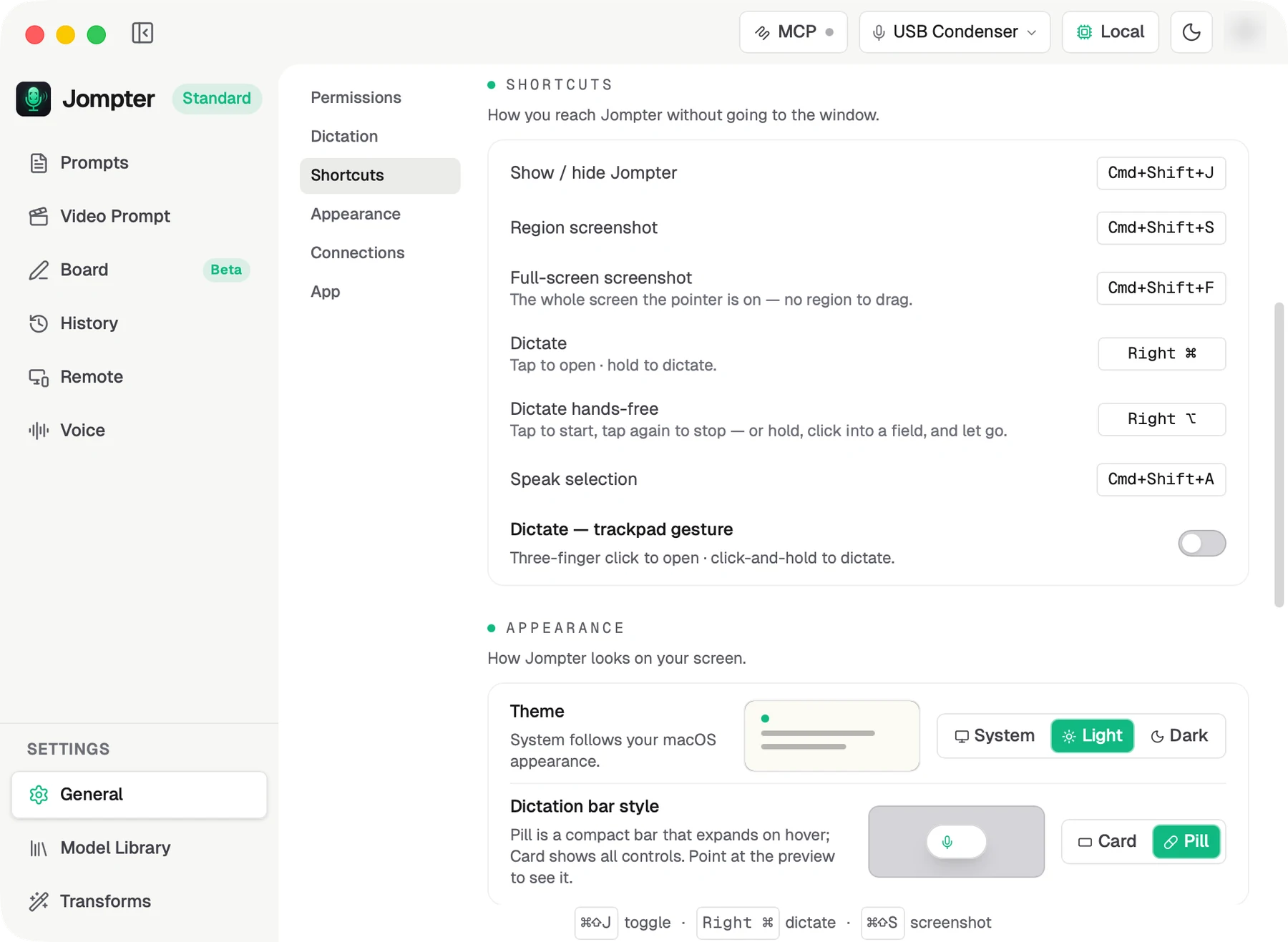
Changing a shortcut
Click the key shown on the right of a row, then press the new one. Esc cancels and keeps the old key.
- Jompter's own shortcuts pause while you record. You can press the current key without it firing; cancelling puts them back.
- Dictate takes either a key combination or one modifier on its own, such as Right ⌘ or Left ⌃. Tap-to-open and hold-to-dictate work the same either way.
- Dictate hands-free takes one modifier on its own only. Press a combination and the row says "Tap one modifier key on its own, like Right ⌥ or Left ⌃." It cannot be the same key as Dictate.
- A key that is already taken is refused, and the old one keeps working:
- another Jompter shortcut — "That key is already used by another Jompter shortcut"
- another app, or macOS — "That shortcut couldn't be set — another app may be using it"
- Reset to defaults appears at the top of the Shortcuts group as soon as any key differs from its default. Point at it to see the defaults; one click restores all six.
Right ⌘ is chosen because almost nothing else uses it. If another app has claimed it, rebind Jompter's rather than fighting over it.
Settings
Every setting in the Jompter Mac app, where it lives and what it changes: shortcuts, speech models, cloud, transforms, Speak, video and MCP.
Updating Jompter
How Jompter updates on your Mac: a check at launch and every six hours, signed update manifests, and Check now in Settings to update by hand.