 Jompter
How do I get AI responses read aloud?
Read aloud is Jompter's on-device text to speech for the replies an agent writes. Select any text — a plan, an error, a long explanation — press ⌘⇧A, and your Mac speaks it. Explain mode rewrites the passage into plain language first, Translate mode speaks it in another language, and you can use both at once. There are ten voices, five male and five female, and playback runs from 0.75× to 1.50×. Everything happens on your Mac, so the text you select is never uploaded in order to be read back. It earns its place when an agent has just produced a wall of reasoning you would rather hear while your eyes stay on the code. It unlocks with a licence or the free trial. Voices, speed, Explain and Translate are all switchable mid-playback, and the selection can come from any app rather than only from Jompter's own windows.
Select. Press ⌘⇧A. Listen.
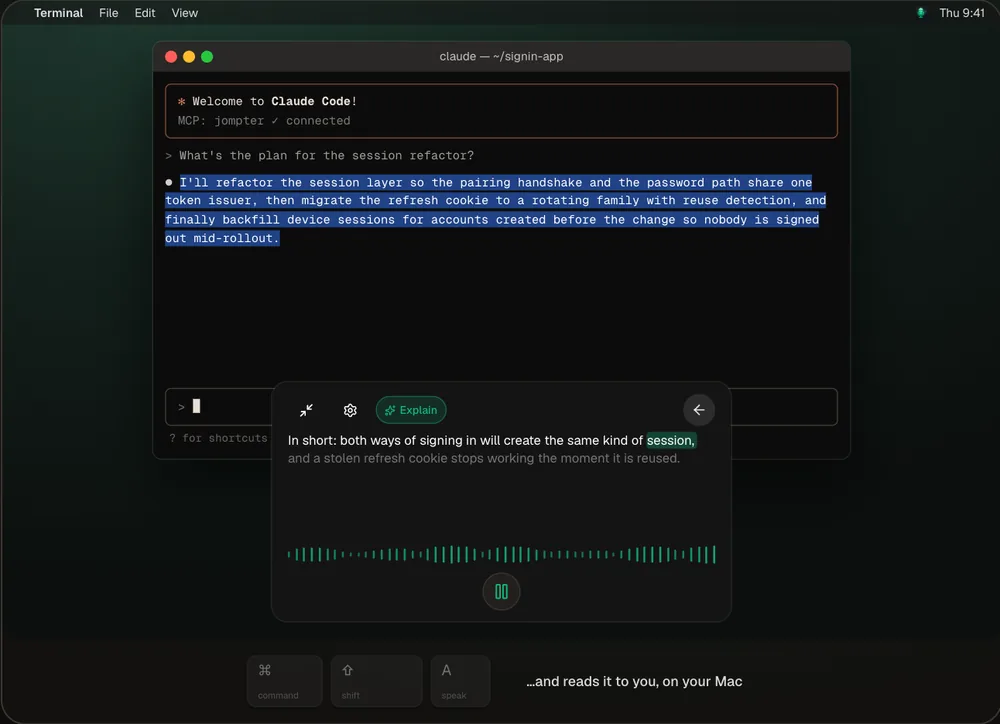
The real Jompter speak card reading an agent's plan aloud.
Too long to read? Hear it.
Rest your eyes
Listen to a long plan while you look at the code it's about.
Explain, not just read
Explain turns dense agent output into plain spoken sentences.
In your language
Translate speaks it in another language — combine it with Explain.
Generated on your Mac
Speech is made on-device, so what you select stays on your machine.
Anything you can select.
Speak reads the current selection in any app, through macOS Accessibility.
- Shortcut
- ⌘⇧A reads the selection
- Voices
- 10 — five male, five female
- Speed
- 0.75× to 1.50×
- Modes
- Explain, Translate, or both
- Where it runs
- On your Mac
macOS Speak Selection vs Jompter
| What | macOS Speak Selection | With Jompter |
|---|---|---|
| Reads the text | Yes | Yes |
| Rewrites it as an explanation | No | Explain mode |
| Speaks another language | No | Translate |
| Playback card | — | Pause, replay, stop |
Read aloud, answered.
Yes. Select the text in the terminal and press ⌘⇧A.
It has your model rewrite the selection as a clear spoken explanation before reading it.
Yes. Turn on Translate and pick a language — it works with Explain too.
No. The speech is generated entirely on your Mac.
Related features
Voice to prompt
Hold a key and talk. Your words land in Claude Code, Cursor or any app.
How voice to prompt works →Offline speech to text
Whisper, Parakeet and Nemotron on your Mac — no per-token bill.
How offline speech to text works →AI whiteboard
Your agent draws the architecture on a live board while you watch.
How the AI whiteboard works →Full detail in the manual: Speak