 Jompter
How do I send a screenshot to Claude Code?
Sending a screenshot to Claude Code means handing over the picture rather than a description of it. Press ⌘⇧S and drag over the region you mean — or ⌘⇧F for the whole display — and the shot lands in Jompter's Screenshots panel. There you box the broken element with Rectangle, point at it with Arrow, label it with Text, or blur anything private with Redact; the blur applies to the shared copy while the original stays on your Mac. Dragging the result into Claude Code, Cursor or ChatGPT hands over a real image file rather than a pasted bitmap, so the agent opens it alongside your words. Shots are stored in Jompter's own folder and nothing is uploaded. It needs Screen Recording permission, Apple Silicon and macOS 13 or later. Annotation is non-destructive: Select, Pen, Arrow, Rectangle, Text and Redact each undo with ⌘Z, so the capture you keep is still the original.
Snap, mark up, drop in.
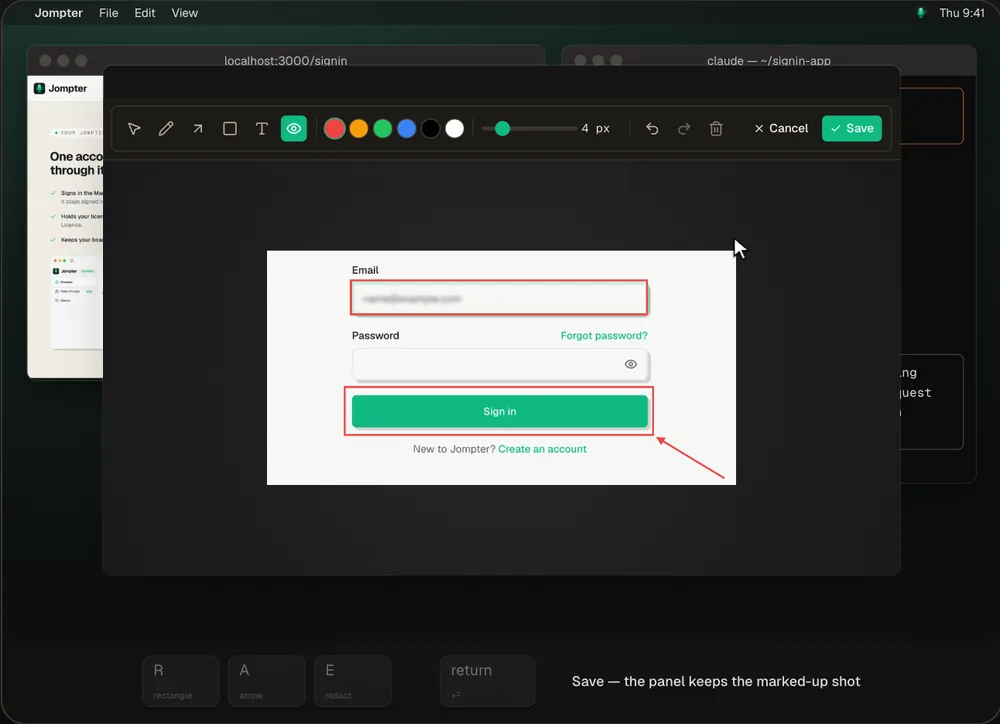
The real Jompter Screenshots panel and annotation editor, dragging a marked-up shot into Claude Code.
Your agent can't see your screen.
Point at the exact thing
An arrow and a box say 'this button, not that one' faster than a paragraph can.
Blur secrets first
Redact blurs keys, emails and customer data before the image leaves your Mac.
Real files, not clipboard guesses
Drag tiles out as image files, or copy their paths for terminal agents like Claude Code.
Edit it later
Annotations are saved as shapes, not burned in, so you can fix a box after the fact.
Drop it wherever your agent is.
Drag a shot into any app that takes images, or copy file paths for terminal agents. Copy image pastes the prompt and its screenshots into Claude.ai or ChatGPT in one go.
- Capture
- ⌘⇧S for a region, ⌘⇧F for the whole display — both rebindable
- Annotate
- Select V, Pen P, Arrow A, Rectangle R, Text T, Redact E; ⌘Z to undo
- Redact
- A blur on the shared image — the original stays on your Mac
- Stored
- On your Mac, in Jompter's folder; nothing is uploaded
- Needs
- Screen Recording permission; Apple Silicon, macOS 13 or later
⌘⇧4 and paste vs Jompter
| What | ⌘⇧4 + paste | With Jompter |
|---|---|---|
| Show what you mean | Crop and hope | Box, arrow, label |
| Hide secrets | A separate editor | E blurs it in place |
| Terminal agents | Find the file on the Desktop | Copy file paths from the panel |
| Finding it again | Somewhere on the Desktop | In the Screenshots panel, tied to the prompt |
Screenshots for AI coding, answered.
Press ⌘⇧S, drag over the area, then drag the tile from Jompter's Screenshots panel into Claude Code — or use Copy file paths and paste the path into the terminal.
Yes. Open it from the panel: R draws a box, A an arrow, T a label, E blurs a region. Save, then drag it in.
No — it blurs them on the shared image. The original stays in Jompter's folder on your Mac.
Yes. Press ⌘⇧S mid-sentence and the image lands between the words you were saying.
Related features
Voice to prompt
Hold a key and talk. Your words land in Claude Code, Cursor or any app.
How voice to prompt works →Screen recording to prompt
Record the bug while you talk; your agent gets the key frames and transcript.
How screen recording to prompt works →MCP prompts & to-dos
Your agent reads the whole prompt itself and keeps a to-do list you approve.
How the Jompter MCP works →Full detail in the manual: Screenshots and annotation